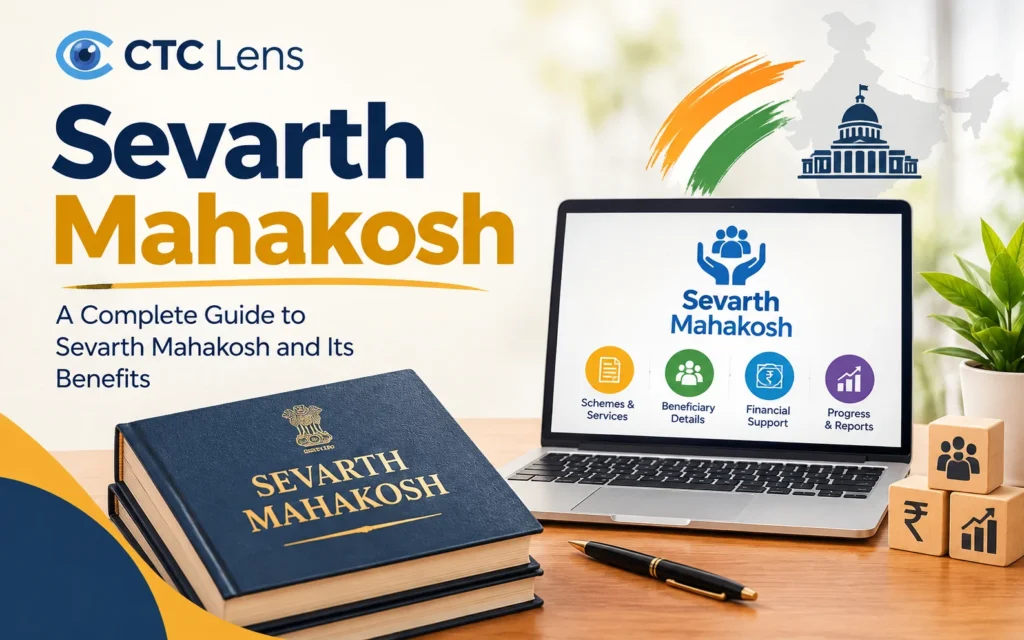

Sevarth Mahakosh is the Maharashtra Finance Department’s payroll and treasury portal at sevaarth.mahakosh.gov.in. State government employees use it to view and download their monthly payment slip (pay slip), and DDO offices use it to prepare salary bills. You cannot register yourself: your login is created and issued by your Drawing and Disbursing Officer (DDO) office.
This guide covers the official login steps, the 5-step payslip download, password reset, what the “new Sevarth Mahakosh” project actually is, and the most common reasons a login or payslip fails.
Quick answer: Open
sevaarth.mahakosh.gov.in→ Login → choose your user type → enter the user ID/password given by your DDO and the captcha → open Employee Corner / Employee Services → View Payslip → select month and year → generate and print or save as PDF.
What Is Sevarth Mahakosh?
The portal’s own home page describes Sevaarth as a centralized, web-based, integrated system of personnel information and payroll for the Government of Maharashtra. It is a component of the state’s Integrated Financial Management System (IFMS) and exchanges data with other IFMS modules, namely TreasuryNet and BEAMS (Budget Estimation, Allocation and Monitoring System). The stated aim is paperless electronic payroll: pay bill generation, electronic submission, electronic audit and electronic payment to employees.
A spelling note: the official address uses sevaarth (two a’s), while most people write “Sevarth”. Search engines treat them as the same thing, but when you type the address, use the official spelling.
The modules behind the Sevarth Mahakosh
Most guides describe it only as a payslip website. In practice it is a set of linked modules:
| Module | What it does |
|---|---|
| Payroll | Preparation of salary bills; source of your monthly pay slip |
| Niwruttivetanwahini (Pension) | Pension case preparation for retired employees |
| DCPS & NPS | Contributory pension and National Pension System records |
| GPF Group-D | Provident fund account maintenance for Group-D employees |
| Loans & Advances | Sanction and recovery of government loans and advances through payroll |
Different roles (employee, pensioner, DDO, treasury officer and others) see different screens, which is why the person who does the data entry is almost never the employee.
Who Can Use It, and Which Sevarth Mahakosh You Actually Need
A frequent cause of “login failed” is simply being on the wrong portal. This table is a practical way to check:
| If you are… | Portal to try first |
|---|---|
| A Maharashtra state government employee (non-teaching: clerical, police, health, revenue, etc.) | Sevaarth Mahakosh, sevaarth.mahakosh.gov.in |
| A school teacher or school staff member | Shalarth, shalarth.maharashtra.gov.in (a separate system with a separate ID) |
| A state pensioner | Sevaarth, using the pensioner login type |
| Staff of a higher or technical education institution | Confirm with your DDO. A document from one such college shows a separate address, htesevaarth.maharashtra.gov.in, so some departments may run their own instance |
Your Sevarth user ID and a Shalarth ID are different, so credentials from one will not work on the other. If you are unsure, ask your DDO office which system your salary bill is prepared in.
Also Read: Panchayat Secretary Salary 2026
Sevarth Mahakosh Login: Step by Step
You need the credentials issued by your DDO office. Employees cannot self-register, and the password you first receive is a temporary one that you should change at first login.
- Open https://sevaarth.mahakosh.gov.in in your browser (type it yourself rather than clicking a link from a search result or message).
- Click Login.
- Select your user type: Employee, Pensioner or Department (the department option is for DDOs and office staff).
- Enter your user ID (your Sevaarth ID/employee ID), your password and the captcha.
- After login you land on your dashboard, where the Employee Corner (also shown as Employee Services) holds your payslip and related statements.
Why the DDO controls access: salary data is tied to the office that draws your pay. The DDO verifies who belongs in the office, which designation they hold and which pay bill they sit in. A self-registration page would break that chain of verification.
What “New Sevarth Mahakosh Gov In” means
Users searching for “new Sevarth Mahakosh” are usually referring to a real project, not a rumour. A Finance Department circular dated 17 October 2023 (No. संकीर्ण-2022/प्र.क्र.29/कोषा प्रशा-4) states that the existing Sevarth Mahakosh system has run since 2012-13, can only be developed up to a limited level, and therefore needs to be replaced. The department decided to have a new Sevaarth system developed through the National Informatics Centre (NIC), Pune.
The same circular tells us what this meant on the ground:
- DDOs had to verify every employee’s existing data (name, Sevaarth ID, date of birth, date of retirement, group, designation) before it was carried into the new system.
- The verification screen sat in the DDO Assistant login under Worklist → Payroll → Utility for Incorrect Data Cleaning.
- The deadline was 15 November 2023, and a signed certificate had to accompany the November 2023 pay bills (payable in December 2023). Bills without it were not to be passed.
- Corrections to date of birth, joining date or retirement date required a scan of the relevant service-book page, sent to the department’s Sevaarth support email.
What I could not confirm: the public pages I could access do not state whether every employee-facing login has already moved to a new address or interface as of October 2026. The login steps above match the current official portal. If your login screen looks different, check the Notice Board on the Sevaarth home page or ask your DDO before assuming the portal is broken.
How to Download Your Sevarth Mahakosh Payment Slip (5 Steps)
- Log in at
sevaarth.mahakosh.gov.inas described above. - Open Employee Corner (or Employee Services in the top menu).
- Choose View Payslip / Pay Slip.
- Select the financial year and month you need.
- Click generate/submit, then print or save as PDF from your browser.
The portal’s help text describes the same flow: go to Employee Corner, click Payslip, select month and year, then use the print button to take the slip.
What a payslip typically shows in Sevarth Mahakosh
- Employee name, Sevaarth ID, designation and office
- Basic pay and allowances (gross pay)
- Deductions such as GPF/DCPS contribution, taxes and recoveries
- Net pay credited to your bank account for that month
Payment slip 2023, 2024, 2025 and 2026: is the process different?
No. The steps are the same for any year; only the month and financial year you select change. What does change from year to year is the content: pay-commission scales, dearness allowance and deductions follow current government orders, so never reuse an old slip’s figures to estimate a new one.
Making the PDF useful
- Use “Save as PDF” in the print dialog so you keep a clean digital copy.
- Download and file slips every month. Older guidance for the Employee Corner said the facility was open only during the first ten days of a month, so if the option is unavailable late in the month, try again early next month or ask your DDO office.
- Lenders and visa offices commonly ask for recent salary slips, so keeping the last several months saved saves a trip later.
Also Read: Highest Salary Jobs In India
Other Statements in the Employee Corner
Besides the monthly slip, the Employee Corner has historically listed options such as Form 16, the GPF annual statement, the NGR schedule and the DCPS R3 slip. Which of these appear for you depends on whether you are a GPF or DCPS/NPS subscriber and on what your office has enabled. If an option you expect is missing, the DDO office is the right place to ask.
How to Reset Your Sevarth Mahakosh Password
Self-service route
- Open the login page and select your user type.
- Click Forgot Password, which sits just below the Login button.
- Enter your user ID and follow the prompts to set a new password.
DDO route (when self-service fails): the DDO can reset an employee’s Employee Corner password from their own login.
The portal’s help note gives the path as Worklist → Payroll → Changes → Reset Employee Password. If you cannot recover access yourself, ask your DDO assistant to do this.
Security habits that matter in Sevarth Mahakosh:
- Change the temporary password at first login.
- Never share your password, and never enter it on a site whose address is not
sevaarth.mahakosh.gov.in. Many unofficial sites copy portal names and screenshots. - Do not give your Sevaarth ID, bank details or OTP to anyone claiming to offer “payslip download services”.
Adding or Registering an Employee (“Payee Register”) in Sevarth Mahakosh
Employees cannot add themselves. Registration of a new employee in Sevarth Mahakosh, and the later steps of attaching them to a post and pay bill, are done by the DDO Assistant and approved by the DDO, the same maker-and-checker pattern used for other treasury data.
The Finance Department circular above shows the same pattern for record changes: the change is drafted in the DDO Assistant login under Worklist → Payroll, then forwarded to the DDO’s login for approval.
If you are a new joiner, give your DDO office the documents they ask for (appointment order, identity and bank details, service-book details). You will receive your Sevaarth ID and login from them, and a payslip will appear after your first pay bill has been prepared.
Also Read: Manav Sampada UP
Common Problems and Fixes In Sevarth Mahakosh
| Problem | Likely cause | What to do |
|---|---|---|
| “Invalid user ID or password” | Wrong portal (Shalarth vs Sevarth Mahakosh), wrong user type, or typing error | Confirm the portal and user type; retry; then use Forgot Password |
| Don’t know your Sevaarth ID | ID not issued yet, or you never noted it | Check the header of an old payslip or ask the DDO office |
| Latest month’s payslip not available | That month’s pay bill may not have been prepared or processed yet | Wait, then ask the DDO office if it stays missing |
| Name, date of birth or joining date is wrong | Data error in the employee record | Ask the DDO to correct it; date corrections need service-book proof |
| Employee Corner option greyed out or missing | Facility not open for the period, or not enabled for your category | Retry early in the month; ask the DDO |
| Moved offices or got transferred | Record must be joined/relieved in the new office | The DDO of the new office completes joining in the Payroll module |
| Account locked after a temporary-to-permanent change | Old temporary ID deactivated | Get a new permanent Sevaarth ID created through the DDO |
FAQs About Sevarth Mahakosh
Can pensioners use the Sevarth Mahakosh portal?
Yes. Select the pensioner user type. Pension payment details are viewable through the pensioner corner.
Can I get payslips from many years back?
Availability depends on what is stored and enabled for your account. Save each slip as a PDF when it is generated rather than depending on the portal to hold them indefinitely.
Is a downloaded payslip enough for a bank or visa application?
Requirements are set by the receiving institution. Many accept the portal-generated slip; some also ask for an office-attested copy. Check with them before you submit.
Who do I contact if the DDO office does not respond?
Escalate within your department first (the head of office or accounts section). Salary data entry and approval sit with the DDO office, and the district treasury processes the bills, so those are the two places a delay can originate.
For more detailed information about salaries, income, and earnings across different professions, you can also check out our salary-focused resource, Salary Batao.