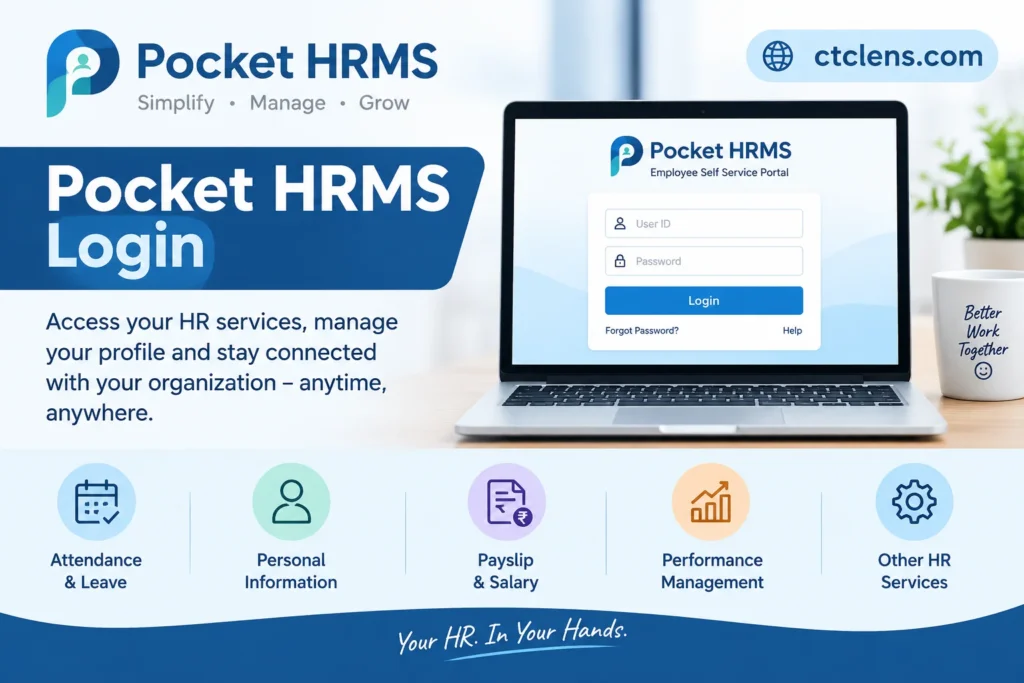

Open the official login page of Pocket Hrms Login at pockethrms.com/login. Choose Employee Login (ess.pockethrms.com) for payslips, leave and attendance, or HR Login (cloud.pockethrms.com) if you manage the system. Employees sign in with the Company Code, Employee Code and Password that their HR team issued.
Which Pocket HRMS portal should you use?
| You are | Use this | Address |
|---|---|---|
| Employee (payslip, leave, attendance) | ESS portal (Employee Login) | ess.pockethrms.com |
| HR or admin | Cloud HR portal (HR Login) | cloud.pockethrms.com |
| Employee on a phone | Pocket HRMS 2.0 app | Android or iOS store |
The official login page lists the first two as separate cards. Start from pockethrms.com/login and you cannot pick the wrong one.
Scam warning: Only enter your password on a pockethrms.com address or in the official app. Third-party “login” pages and lookalike links can capture credentials. Never share your password by email or chat.
Pocket HRMS employee login (ESS portal)
| Step | What to do |
|---|---|
| 1 | Go to ess.pockethrms.com |
| 2 | Enter Company Code, Employee Code and Password from your HR email |
| 3 | Click Sign In to reach the dashboard |
| 4 | Create a new password straight away |
The official guide tells new users to change the password first. The emailed password is shared with HR and the mail system, so changing it keeps your account private. To do it, click the profile icon at the top right and choose Change Password.
Pocket HRMS ESS Login
Employee Self Service Portal
Employee Login
Sign in to your company’s Pocket HRMS employee portal.
✓ Company Code
✓ Employee Code
✓ Password
You will be redirected to the official Pocket HRMS website.
Services Available on Pocket HRMS ESS
Attendance & Leave
View attendance records, check leave balances and submit leave requests.
Salary & Payslip
View salary details and download available monthly payslips.
Employee Profile
View and update personal and employment information as permitted.
Employee Dashboard
Access attendance statistics, shift information and HR updates.
Forgot Pocket HRMS Password?
If you have forgotten your password, open the ESS login page and select the
Forgot Password option. Follow the instructions to reset your password.
You may need your Company Code and Employee Code.
Access Your Employee Account
Visit the official Pocket HRMS ESS portal to manage your employee services.
Disclaimer
This page is published by ctclens.com for informational purposes only.
We are not affiliated with Pocket HRMS. The official portal is operated by
Pocket HRMS. Always use its official website for login and account-related services.
What you can do after login:
| Task | Where to find it |
|---|---|
| Download payslip | Dashboard “Last Salary Processed”, or Profile > My Salary Details > My Pay slip |
| Check PF details | My Salary Details > My Provident Fund Details |
| Form 16, TDS worksheet | Profile > My Tax Details |
| Apply for leave | Leave > Request > Leave |
| Work from home or on-duty | Leave > Request > On-duty or Work from Home |
Your menus depend on the rights your administrator gave you. If an option is missing, ask HR before assuming something is broken.
Pocket HRMS 2.0 login on mobile
The 2.0 app uses the same three details as the web portal: Company Code, Employee Code and Password. Tap Login to reach the dashboard.
| Item | Detail |
|---|---|
| Publisher | Pocket smHRt Tech Private Limited (App Store listing) |
| Cost to employees | Free; the company’s Pocket HRMS plan covers it |
| Devices | One mobile device at a time, for security (per official FAQ) |
| Payslip | Plus sign > Payslip > download for the month |
| Check version | Hamburger menu, bottom of the list |
Search “Pocket HRMS 2.0” in the Play Store or App Store and check the publisher name before installing. Keep auto-update on, because the docs advise updating to get all features.
Forgot your Pocket HRMS Login Password?
| Where | What to do |
|---|---|
| Mobile app | Tap Forgot Password, enter Company Code and Employee Code, tap Reset, then use the Reset Password button in the email |
| Web ESS portal | I found no forgot-password steps in the official docs I read. Ask your HR to generate a new password and email it; HR has a documented way to do this |
On the app, reset instructions go to your registered email. If you no longer have access to that email, HR has to update it first.
Pocket HRMS Admin Login (HR portal)
HR administrators use cloud.pockethrms.com. The company’s implementation team or an existing admin sets up these accounts, and I could not verify the exact fields on that screen. The docs list a “Two-way authenticator” setting, so your company may have an extra verification step turned on. If you are locked out, contact your internal admin first, then support@pockethrms.com.
| Admin task | Docs section |
|---|---|
| Create employee logins | HR > Password Generation |
| Control who sees what | Role Allocation, Self Service Role |
| Payroll, leave, reports | Cloud Configuration |
Pocket HRMS attendance after login
| Method | How it works |
|---|---|
| Selfie and GPS punch (app) | Photo plus location when you punch in or out |
| Face recognition | Upload 3 clear photos in Leave > Face Recognition; works only after HR approves them |
| Regularization | Leave > Request > Attendance Regularization to correct in or out times |
| Biometric, geo-fencing | Depend on your company’s plan and setup |
HR approval matters because it stops someone else enrolling a photo under your code. Geo-fencing is listed only on Professional and higher plans.
Pocket HRMS Login not working? Quick fixes
| Problem | Likely cause and fix |
|---|---|
| “Invalid” message | Check Company Code and Employee Code. Both are required, not just your name |
| No password email | Check spam, then ask HR to resend |
| New joiner, cannot sign in | Self-service access may not be activated yet (my inference; confirm with HR) |
| Logged out of the app | You may have signed in on another phone |
| Menu or feature missing | Admin has not given you that right |
| Attendance face punch fails | HR may not have approved your photos yet |
If none of these work, tell your HR the exact error. Pocket HRMS support (support@pockethrms.com) serves company accounts, so employees should go through HR first.
Pocket HRMS pricing in India
These prices are for employers. Employees pay nothing extra.
| Plan | Price (billed annually) | Per extra employee |
|---|---|---|
| Standard | ₹2,995/month for 50 employees | ₹60 |
| Professional | ₹4,495/month for 50 employees | ₹90 |
| Premium | Custom quote, 100+ employees | Contact sales |
The pricing page says a one-time implementation fee applies and the minimum is 50 employees. It offers a free demo, while its buttons say “Get Free Trial”, so confirm which one you get. Prices on review sites differ from the official page, so use pockethrms.com/pricing and ask for a written quote.
What is Pocket HRMS and who is behind it?
Pocket HRMS is cloud-based HR and payroll software for Indian SMEs. Its pricing page says it is hosted on Microsoft Azure.
| Fact | Detail |
|---|---|
| Company | Pocket smHRt Tech Pvt. Ltd. |
| Separate entity since | 2023, from parent Greytrix India Pvt. Ltd. |
| Product history | Started as Pocket Payroll in 2004; renamed Pocket HRMS in 2017 |
| Core modules | Attendance, leave, payroll, ESS, recruitment, expenses, appraisals |
Some review sites list different founding years. I used the company’s own about page.
Pocket HRMS Reviews: What Users Say
| Source | Rating | Notes |
|---|---|---|
| G2 | About 4.5 out of 5, around 30 reviews | Ease of use and payroll praised; customization scored 6.2 out of 10 |
| Capterra | 4.0 out of 5, 15 reviews | Ease of use 4.1, customer service 4.2; the reviews I saw dated from 2020 to 2022 |
These are small samples, so treat them as a rough guide. G2 reviewers mention that the interface could be better, and some mention limited features.
Key takeaways
- Start at pockethrms.com/login and pick Employee Login or HR Login.
- You need Company Code, Employee Code and Password from your HR.
- Change the emailed password on first login.
- For app problems, reset via Forgot Password or ask HR.
Also Read: HRMS Globex
Frequently Asked Questions
Can I use one account on two phones?
The official FAQ says you cannot stay logged in on multiple mobile devices.
Is the Pocket HRMS app free for employees?
Yes. The company’s plan covers it.
Who can see my payslip?
It is shown inside your own account. If a payslip looks wrong, raise it with your HR or payroll team.